


SEO Checklist for a New Website
A single box left ticked can cost months of organic traffic. The checks to run before, during and after launch so your rankings come with you.

An SEO checklist for a new website is the set of technical and content checks you run before, during and after launch, so that you keep your rankings and organic traffic. The critical steps are to keep your URL structure, set up a 301 redirect for every address that changes, carry over page titles, meta descriptions and structured data, remove any noindex or blocking left over from staging, and crawl the old site before it is switched off.
For many teams, the launch is the part of a new website they worry about most. Customers meet a design no real visitor has used yet, and if something goes wrong, sales and organic traffic can fall sharply.
Below is what you need to get right at launch to keep the rankings you have built up, and perhaps gain a few new ones.
The Short Version
- Crawl the old site before it is switched off, so you have a complete list of URLs to work from.
- Keep the URL structure if you can. If you have to change it, build a one-to-one redirect map with 301s.
- Remove noindex from the new website before you go live.
- Carry over page titles, meta descriptions, structured data and existing redirects.
- Check in Search Console straight after launch that Google can index your website and that 404 errors aren’t climbing.
The Full Checklist
Critical
- Keep your URLs unchanged wherever you can
- Set up a 301 redirect for every URL that does change
- Remove noindex from the new website
- Crawl the old site before it is switched off
- Only remove text as a deliberate decision
- Keep the internal links to your important pages
- Carry over page titles and meta descriptions
- Carry over structured data
- Carry over existing redirects
- Keep www or non-www, whichever you had before
- Remove thin, auto-generated pages
Important
- Check for broken links with a crawler
- Fix page speed before you launch
- Redirect the http version of every page to https
- One clear H1 per page
Good practice
- Reference your sitemap in robots.txt
- Check that canonical tags point to the right URL, normally the page itself
- Link to final URLs, not to URLs that redirect
- Aim for page titles of around 60 characters or fewer
- Aim for meta descriptions of around 160 characters or fewer
- No orphan pages (pages with no internal links pointing to them)
On launch day and after
- Check in Search Console that Google can index the website
- Set up a 404 report
- Install Google Tag Manager
- Install Google Analytics behind a working cookie banner
- Set up conversion tracking
- Review the reports under “Experience” in Search Console
- Submit your sitemap in Search Console
Copy the list into your own launch plan and tick it off as you go. The sections below explain the points that need more than a line. If you would like help with the search side of your launch, our SEO team can take it on.
Technical SEO Checks Before Launch
Don’t Change URLs Unless You Have To
A URL builds up value in Google over time. A new address has to earn it again, and only a redirect carries it across.
If you do have to change URLs, for technical reasons or because the old structure was simply wrong, set up 301 redirects. WordPress has plugins for this, such as “301 Redirects”. If you are changing a lot of URLs, import them all from a CSV file rather than entering them one by one.
For larger structural changes, always build a redirect map: a one-to-one list in which each old URL points to exactly one new URL. Test it on the staging site before you go live, so you know each 301 lands in the right place rather than in a redirect chain or on a 404. This is where migrations usually go wrong: not in the technology, but because nobody checked the mapping page by page before the switch.
A change of subdomain is easy to miss. In www.example.co.uk, www is a subdomain of example.co.uk. If your site used www before, keep it; if it didn’t, don’t add it.
Google says permanent redirects don’t cause a loss in PageRank, but expect rankings to fluctuate while Google recrawls the site. On a medium-sized site it can take a few weeks or more before the new URLs replace the old ones in the results, so change only the URLs you need to.
Remove Noindex Before You Go Live
One of the most common mistakes is also the easiest to avoid: leaving noindex on the new website. In WordPress, the setting is a tick box under Settings → Reading → Search engine visibility, labelled “Discourage search engines from indexing this site”. It is ticked on almost every site in development, and easily forgotten at launch.
The result is a new website that carries noindex or is blocked in robots.txt, and as Google recrawls it, your pages start to drop out of the results. We have seen companies lose months of traffic over a single tick box.
Before you go live, check the following:
- Untick “Discourage search engines from indexing this site” in WordPress.
- Read robots.txt yourself: there must be no “Disallow: /” left over from staging.
- Search the source code of your most important pages for
noindex. WordPress writes the robots tag with single quotes and “noindex, nofollow”, so search for the word rather than the whole tag. - Make sure any password protection (HTTP authentication) used on staging has been removed.
Straight after launch, check again with URL Inspection in Search Console. It takes a few minutes and can save the launch.
Crawl the Old Site Before It Is Switched Off
Before you switch off the old website, you need a complete list of every URL it has. Without that list you are guessing when you build the redirect map, and every URL you miss becomes a 404 and loses the ranking value it had.
Use a desktop or cloud crawler. We use Screaming Frog; Sitebulb, Ahrefs and Semrush do the same job. Crawl the whole of the old domain and export:
- All URLs with a 200 status code.
- All page titles and meta descriptions (to compare after launch).
- All internal and external links.
- All structured data.
Then add the Pages data from Google Search Console (Performance → Search results, Pages tab). It shows which URLs actually receive organic traffic and, page by page, the keywords that bring it. Those are the pages you can’t afford to lose.
With both lists you have the basis for an accurate redirect map, and nothing is left to guesswork.
Don’t Remove Content Without a Reason
Some content will change on any new website, and SEO sometimes has to give way to design. But removing text and images can cost you traffic, because that text is often what ranks for your keywords.
The best answer is to plan for it at the design stage: give the designer room for the text each page needs, so it sits neatly in the layout. If there is no other option, the text can go further down the page, although important content generally belongs near the top.
Carry Over Page Titles and Meta Descriptions
Page titles, meta descriptions and image alt text are often lost along the way. If you change them, do it on purpose.
The page title matters most. It tells Google what the page is about, and it is usually the headline people see in the results, so a title lost or rewritten in passing can cost you rankings and clicks. Our guide to page titles and meta descriptions covers how to write them.
Check the Mobile Version
Google uses the mobile version of a website for indexing and ranking, and only the content shown on the mobile site is used for indexing. If you have content, links or structured data that only exist on desktop, then as far as Google is concerned they don’t exist.
Check that nothing important on the desktop version, whether text or links, is missing on mobile.
Carry Over Structured Data
Structured data (schema markup) has to come across too. Run Google’s Rich Results Test on a handful of URLs on both the old and the new website and compare the results. It only shows markup that can produce a rich result, so for types such as Organization, check the same URLs in the Schema Markup Validator as well.
If the markup was wrong on the old site, fix it now.
Review Your Internal Links
Internal links are less visible than URLs or content, but just as easy to break, and a new website often has a different structure, so link equity flows through it in a different way.
You want internal links to point to your most important pages. A simple way to make sure they do is to link to those pages from the header, from the body text on the home page and from the footer. Our guide to internal links covers the rest.
Bring Your Old Redirects with You
If your site already has 301 and 302 redirects, they must be carried over, or 404 errors will rise and you will lose link equity. A few can be moved by hand; if there are many, export them and import them as a CSV file.
Check for Broken Links
Broken links hurt both SEO and the user experience. They may sit in old content, or in a mobile menu you didn’t click through when you tested the site yourself.
At launch, use a crawler such as Screaming Frog or Sitebulb. It goes through the whole website from the outside, much as a search engine does, and gives you the status code of every link in a list you can export and work through. You will already have one running for the redirect map.
Once the site is live, a WordPress plugin such as Broken Link Checker can keep watch between crawls, as our technical SEO guide suggests. Its local engine runs the scans on your own server; if load is a concern, use its cloud engine, which runs them on WPMU DEV’s servers instead and needs a free WPMU DEV account.
Fix each broken link where it appears rather than relying on a redirect alone.
Don’t Link to Redirected URLs
Old internal links often point to pages that now redirect somewhere else. Google’s advice for a site move is to update your internal links to the new URLs. The quickest way is to run your redirect list as a search and replace on the links in your database. You will probably need a developer for this; without one, you can update the links by hand, page by page.
Fix Page Speed Before You Launch
A new build is the easiest time to make a site fast. Speed is much harder to add after launch, and you get the best result when the developer plans for it from the start.
Before launch the new site has no real visitors, so there is no field data for it yet. Use a lab tool such as PageSpeed Insights or Lighthouse to catch problems while the developer is still on the job, but don’t chase a perfect lab score.
Page speed isn’t only about how fast a page loads, but about how fast it feels. In March 2024, INP (Interaction to Next Paint) replaced FID (First Input Delay) as one of the Core Web Vitals. INP measures how quickly the page responds to a visitor’s interactions throughout the visit, not just the first click. A page that looks fast but hangs on every tap will score badly, and Google says good Core Web Vitals align with what its core ranking systems seek to reward.
After launch, judge speed by the field data in Search Console’s Core Web Vitals report, which reflects your real visitors, rather than by single lab tests.
Clean Up Thin Pages
A sitemap generated by Yoast or Rank Math can pick up pages you don’t need. These are usually pages that your theme or plugins create automatically, such as tag and attachment pages or location and event listings, and they should be the first to go.
Remove them from both the sitemap and the website, so you avoid thin content and don’t spread link equity across pages that will never rank. In WordPress, listings such as locations and events can be set to private; tag and attachment pages are switched off or set to noindex in Yoast or Rank Math.
Also check that your sitemap doesn’t list URLs that return a 404 or redirect. Clear those out too, so Google spends its crawl budget on the pages that matter.
While you are at it, keep pages Google has no reason to show, such as thank-you pages, out of the sitemap and set them to noindex. Don’t delete thank-you pages: your conversion tracking may depend on them.
If your site runs on WordPress, our guide to WordPress SEO goes into more detail.
SEO Checks After Launch
Can Google Index the New Website?
Open Search Console and enter a URL in the inspection box at the top:

Once the site is live and any problems are fixed, you can request indexing for your important pages. How quickly Google gets to them varies: crawling can take anywhere from a few days to a few weeks. Google says that requesting a recrawl several times for the same URL won’t get it crawled any faster, and there is a quota. If a page still isn’t indexed after a while, find the cause before you request indexing again. Our guide to Google indexing covers the usual causes.
Submit Your Sitemap in Search Console
Always submit your sitemap in Search Console. Since version 5.5, WordPress has created a basic sitemap at /wp-sitemap.xml, and SEO plugins such as Yoast and Rank Math generate their own, usually at /sitemap_index.xml. Submit the one your site actually uses.
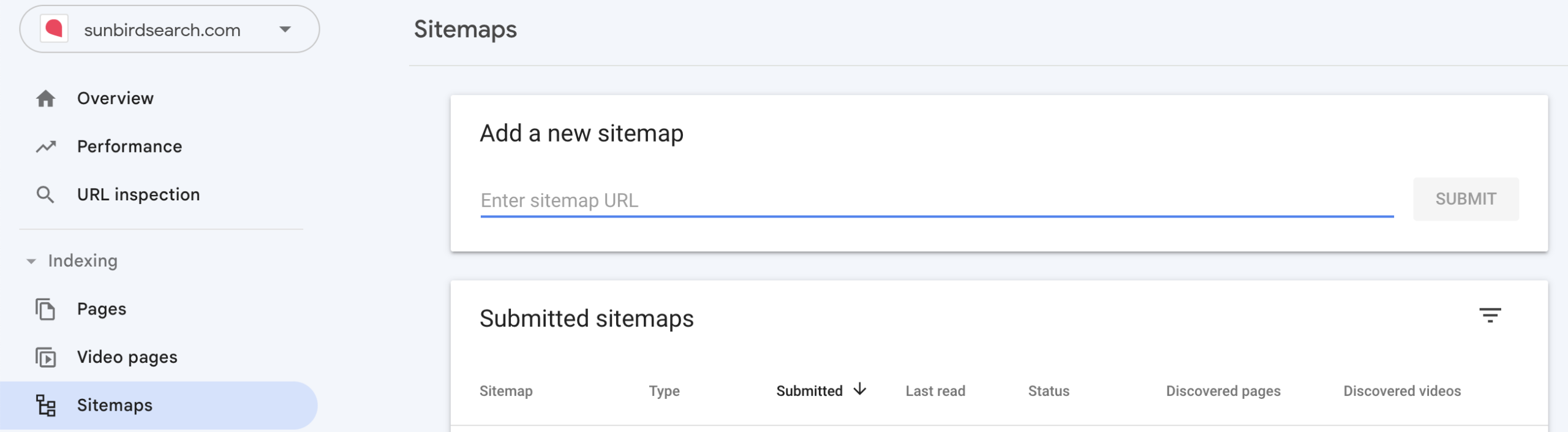
If you submitted a sitemap for the old site, check that its URL hasn’t changed. If it has, for example because you have moved to a different SEO plugin, submit the new one.
Set Up a 404 Report
If your redirect map is complete, you shouldn’t see more 404 errors after launch than you did before it.
For any relaunch we recommend a 404 report in Google Analytics 4. The simplest method is to track the title of your 404 page: open Reports → Engagement → Pages and screens, filter on the page title your 404 template uses (in WordPress it normally starts with “Page not found”), and add the page path as a secondary dimension to see which URLs visitors asked for. The 404 log in a redirect plugin such as Redirection is an alternative or a complement: it records 404 errors on the server, including those from visitors who declined cookies and so never reach GA4. Search Console’s Page indexing report adds a second view: it lists the URLs Google itself found returning “Not found (404)”.
In the first weeks after launch, check the report every day. For each URL that returns a 404, set up a redirect. If the visits come from search, a 301 redirect is enough. If they come from one of your own internal links, correct the link first and then add the redirect.
Get Tracking in Place on Day One
Tracking should be live from the moment you launch. It won’t change how the launch goes, but if something does go wrong, it makes the cause much easier to find.
If you already use Google Tag Manager, this is quick: add the same container to the new site and update any triggers that rely on old URLs, page elements or form names. Check, too, that the cookie banner works on the new site and that your tags respect each visitor’s choice.
Get Help with Your Launch
Everything above is about making sure you don’t lose rankings at launch. When we support a launch, the aim is to come out of it with more organic traffic than you went in with.
If you would like help with a migration or a launch, see how our SEO agency works, or start with a free search audit. Done properly, a launch can be where you start to pull ahead of your competitors.